
These are the things you can get to know from this article.
- What is Typescript and Why not Javascript?
- What is yarn and Why not npm?
- Let’s do the initialization of our project
- Begin the initialization of EsLint in the project
- Methods of building and running our project
- Let’s use a typescript configuration file
- Adding the “nodemon” to our project
- Adding scripts to run the project in the development environment
What is Typescript and Why not Javascript?
Typescript is a programming language that extends the syntax and features of Javascript. Not only that, there are some new features added by the typescript.
- Types
- Classes
- Interfaces
- Enums etc.
Also not only that it can detect errors in the compile time. Because of these features, programmers can reduce code errors and inconsistencies in their code. That's why here I choose Typescript over Javascript.
What is yarn and Why not npm?
Yarn is a package manager which allows you to easily install, manage, and update dependencies for your project. So yarn uses a lock file to ensure the consistent installation of packages across different environments. Also, it has features for improving performance like,
- Caching
- Parallelized operations
So mainly using yarn over npm is its performance. So it's faster than the npm package manager by reducing installation times by using the features mentioned above.
Let’s do the initialization of our project
Let’s create a folder named typescript_with_node. In that folder, you can start your project. First of all, let’s create an src folder in the project to contain our project source files. Let’s create your server.ts file which is the initialization of your server by using NodeJs. So your project structure now will be like this.
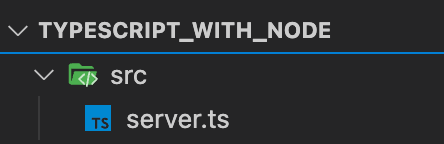
In this project, you can see that I’m using yarn as my package manager. To initialize the configuration file for the yarn package manager, let’s run these commands in your terminal/command line at typescript_with_node/ path.
yarn init -y
yarn add express body-parser dotenv
Now paste this code into your code to initialize your server.ts file.
const bodyParser = require("body-parser");
const express = require("express");

const app = express();

app.use(bodyParser.json());
app.use(bodyParser.urlencoded({ extended: true }));

const PORT:string|number= process.env.PORT || 3000;

app.listen(PORT,()=>{
 console.log(`server is running on ${PORT}`);
});
So now you can see some red markers are going on words like require and process. The reason is still no typescript support is given to our project.
Begin the initialization of typescript support into our project
Typescript npm package allows developers to install and use the TypeScript compiler and other related tools in their projects. So let’s install that package to our project.
yarn add typescript
Still, you can see those red markers mentioned above are still there. right? Let's fix that.
The reason for those red markers is we need a package that offers type definitions for the Node.js runtime and its modules. Let's get that module into our development environment.
yarn add -D @types/node
Methods of building and running our project
There are several methods to compile and run the server.js file in your project.
- By using the “tsc” command ( Normal way of compiling typescript files)
So you can compile your server.ts file by using the below command.
yarn tsc src/server.ts
So you can see that after this command there is a server.js file created in your src folder. Let's run that using this command.
node src/server.js
But here you can see that compiling and running a typescript file needs two lines of code. But there is a way to run this typescript file without using two lines of code like this and also without creating a server.js(without compiling your typescript file) file in your directory.
2. By using the “ts-node” package
“ts-node” is a runtime execution environment for Node.js designed to execute TypeScript code directly without the need to first compile it to JavaScript. So let's get the “ts-node” package to our project file.
yarn add ts-node
Now, let's run our server.ts file using “ts-node”.
yarn ts-node server.ts
But with this method, we cannot build and deploy to our web server or cloud hosting platform. To fix all of the issues we can use our yarn.lock and use a typescript configuration file.
Let's use a typescript configuration file
First of all, let's create a typescript configuration file.
yarn tsc --init
You can see that now there is a configuration file created named tsconfig.json. This file is used by the typescript compiler to specify compiler options and settings.
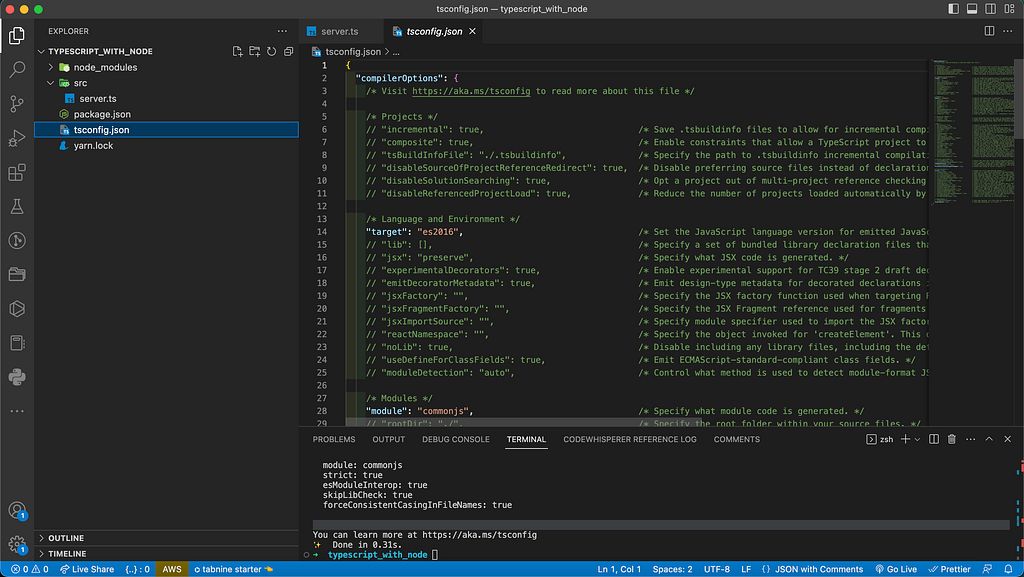
This tsconfig.json file is created with the default compiler options and settings. Let’s modify the file according to our preferences.
Remove the comments on this line.
"moduleResolution": "node",
Now modify this line like this. This step specifies the path of the server.js file which needed to be created after compiling the server.ts file.
"outDir": "./build",
So at the end of the file add this code block. This step specifies the files that are needed to compile.
    /* Completeness */
    // "skipDefaultLibCheck": true,                      /* Skip type checking .d.ts files that are included with TypeScript. */
    "skipLibCheck": true                                 /* Skip type checking all .d.ts files. */
  },
  "include": [
    "src",
    "server.ts"
  ],
  "exclude": [
    "node_modules"
  ]
}
Now if you run the yarn tsc command you can see that there will be a build file being created and also you can run that file using node build/server.js. The reason for creating a file like that is, we configured our compiler by modifying the tsconfig.json file.
Adding the“nodemon” package to our project
Nodemon monitors your source code for changes and automatically restarts your application when changes are detected. By adding it we can easily see the changes in our project. Let’s add “nodemon” to our project. Also need to remind you that we are adding this to our development environment because we only need this package when we are developing our project and we don’t need this package in the staging, and building environments. That’s why -D is in the below code snippet.
yarn add -D nodemon
Run the below code to execute your project in the development environment.
yarn nodemon --watch "*.ts" --exec "ts-node" ./src/server.ts
Here is an explanation of each of the options of that command:
- --watch "*.ts": This option instructs nodemon to watch for changes in any file with a .ts extension.
- --exec "ts-node": This option specifies the command to execute when changes are detected. Also, this uses ts-node command to execute without compiling. To execute like this you need to install ts-node into your project before that. ( Read and implement “By using the ts-node package” in this article)
Adding scripts to run the project in the development environment
So let's make running the project in the development environment easier. In your package.json file add this code snippet.
"scripts": {
    "start": "nodemon --watch \"*.ts\" --exec \"ts-node\" ./src/server.ts",
},
Now running the project is much simpler than before. No need to write long command to run the project in the development environment. Just run this command (Before that make sure that you have the “ts-node” package installed into your project. Refer:- “By using the ts-node package” in this article)
yarn start
Now all are fine and you are ready to go :)
Please give a clap 👏🏻 if you like this article and also if its useful. Thank you :)