These are the things that you can get from this article,
- What is Segment?
- Let’s begin from the segment end…
What is Segment?
When we talk about Segment easiest way to explain is, it's a Customer Data Platform used to collect data from all the platforms and distribute them to the tools like analytics, a/b testing, advertising, CRM, Marketing tools, etc.
Let's begin from the Segment end…
When starting the journey from the Segment first we have to set up our sources. Now I know that you are wondering what sources mean in Segment… Sources in the Segment means which are the source endpoints that send the data to the Segment. Those source endpoints can be your websites, mobile apps, and backends like that. In our case, we had 8 sources to get the data. Those are,
- GoTradie Backend Dev
- GoTradie Mobile Dev
- GoTradie Web Dev
- GoTradie Invite Dev
- GoTradie Backend Prod
- GoTradie Mobile Prod
- GoTradie Web Prod
- GoTradie Invite Prod
Let's get to know how to set up a source in Segment
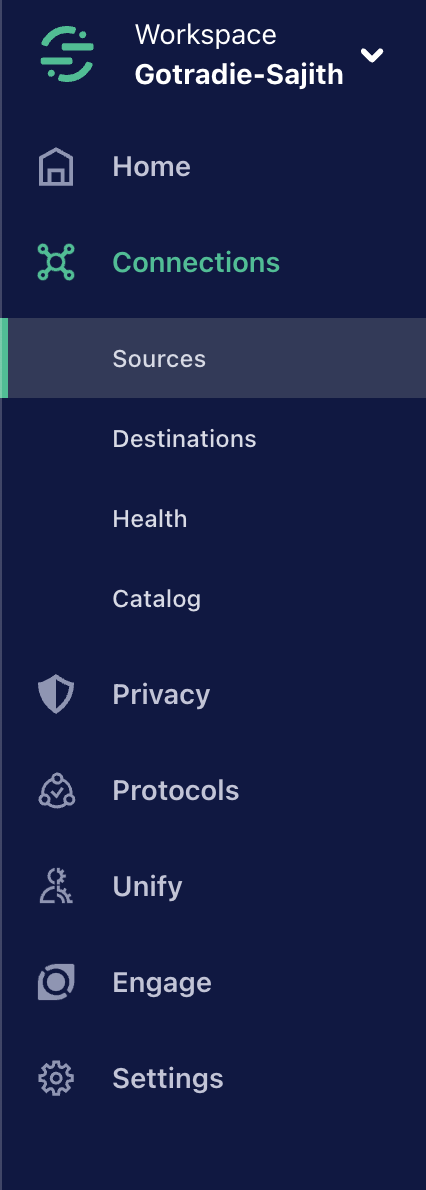
First, go to the Sources in the Segment menu.
Then go and click the Add source button.
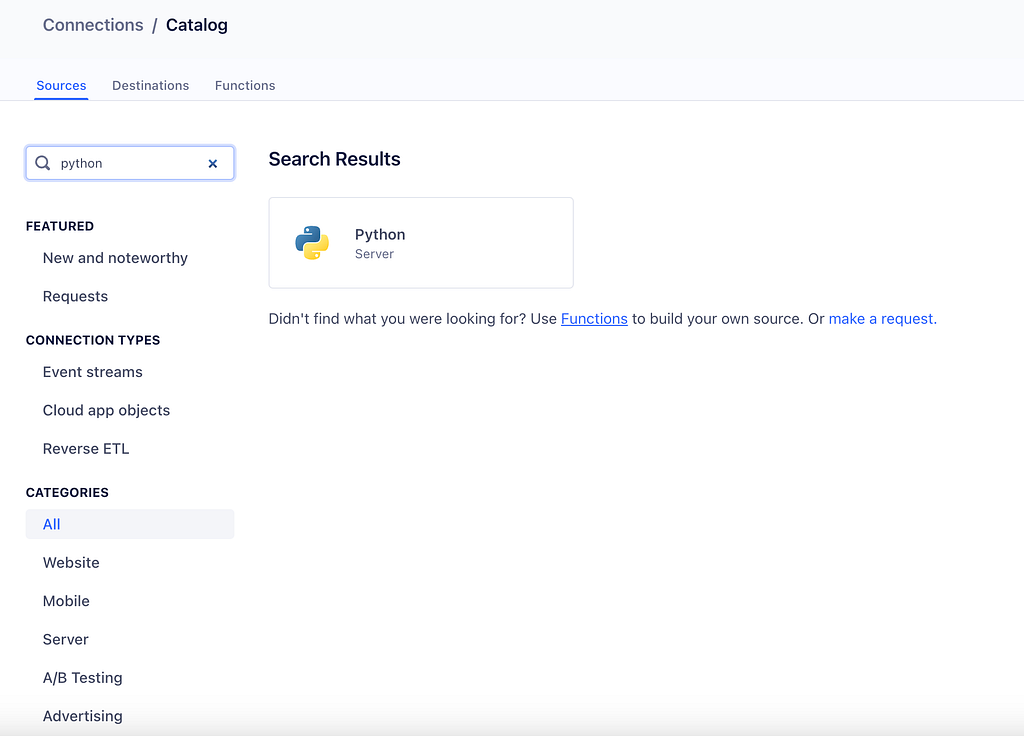
Then search for the source that you want to connect. If you are connecting a source you have to search like this in the segment source search,
- If it is a Javascript-based application — Javascript
- Python-based application ( Like python based website or server ) — Python
- React native based app — React Native
This is how the source searching needs to be done in the Segment,
Then click Add source.
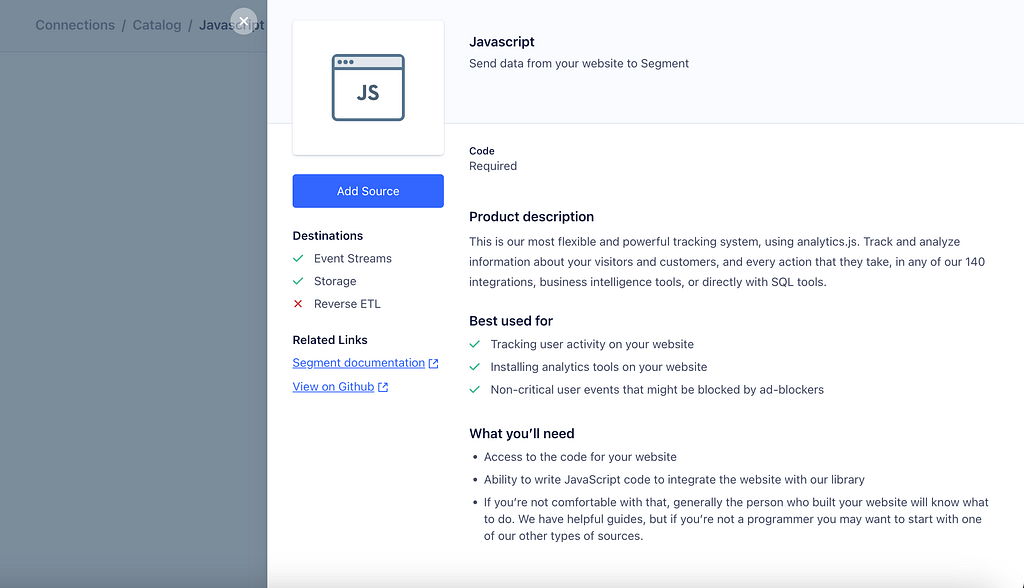
Then fill in the fields according to that source. So the details that you have to fill in become different according to the source.
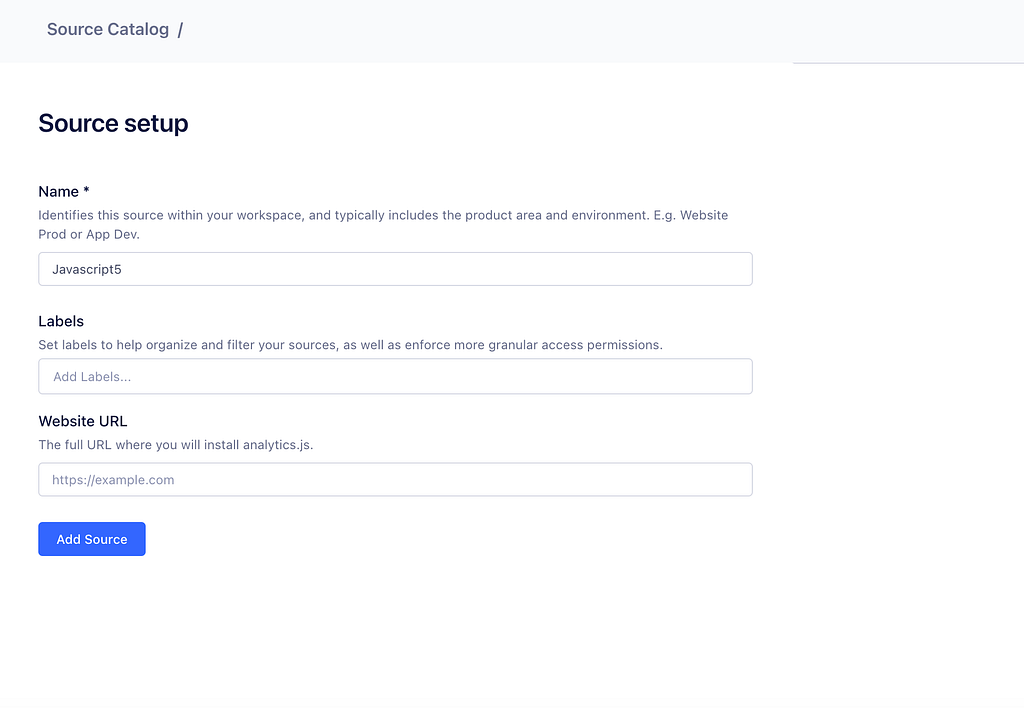
Then click Add Source button and give it a go.
So now your source setup is finished in Segment.
Let’s get to know how to set up destinations in Segment…
Destinations in the segment mean those are the endpoints to which we send our data to. Those endpoints can be Analytics endpoints, Storage endpoints, Advertising tools endpoints, etc. In our case, we added 14 destinations in Segment. Those are,
- Google Analytics Backend Dev
- Google Analytics Invite Dev
- Google Analytics Mobile Dev (Android)
- Google Analytics Mobile Dev (iOS)
- Google Analytics Web Dev
- Google Analytics Backend Prod
- Google Analytics Invite Prod
- Google Analytics Mobile Prod (Android)
- Google Analytics Mobile Prod (iOS)
- Google Analytics Web Prod
So these are the steps to create a destination in Segment. In our case, we used Google Analytics 4 Cloud as a destination. Here Im gonna demonstrate how to set up Google Analytics 4 Cloud destination.
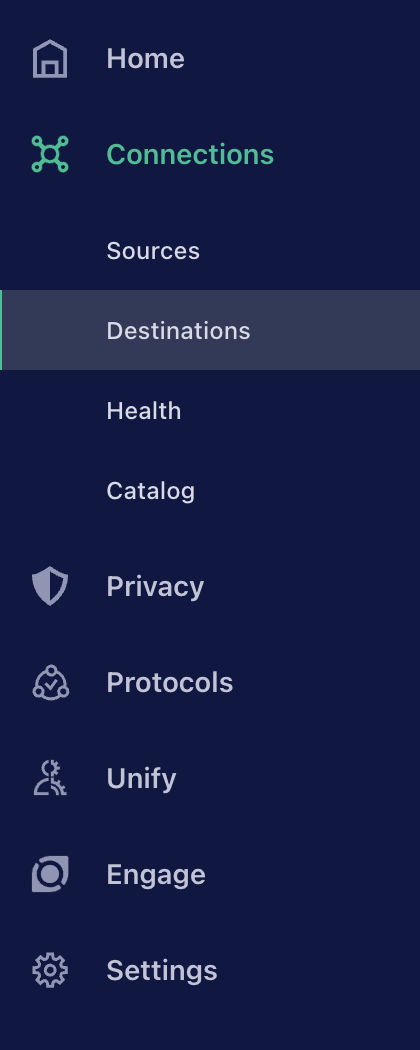
First, select Destinations in the Segment menu.
Then click the Add Destination button in Segment.
Search as your destination name like this.
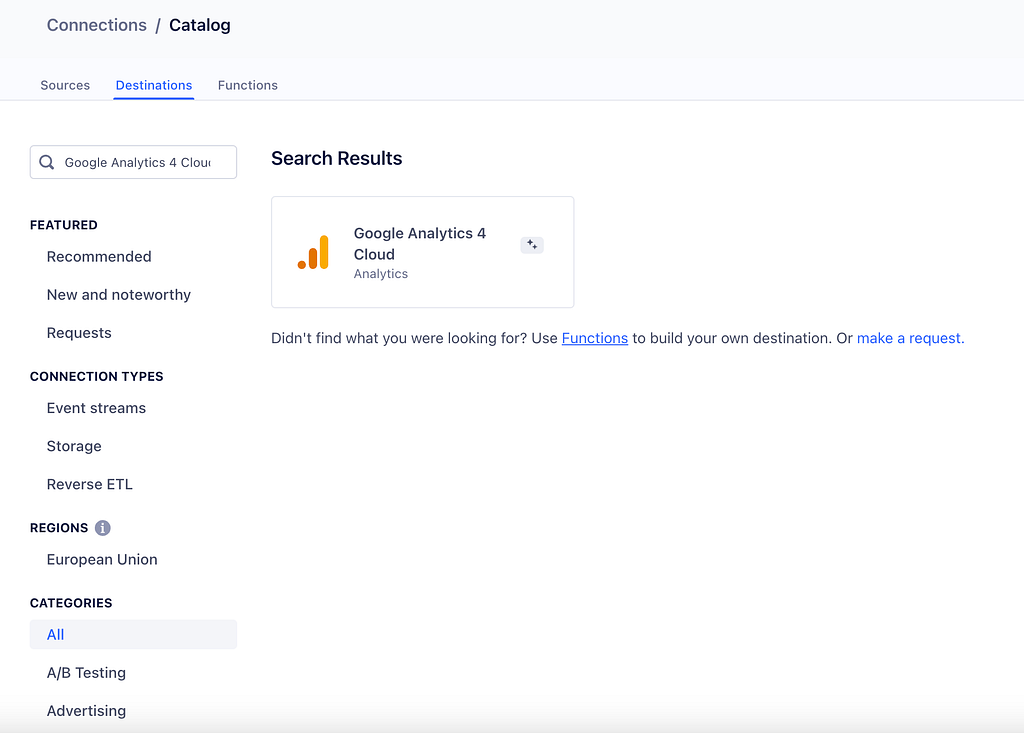
Then after selecting the data source. You can proceed through clicking this button.

Then you can select a data source that is connected to that destination.
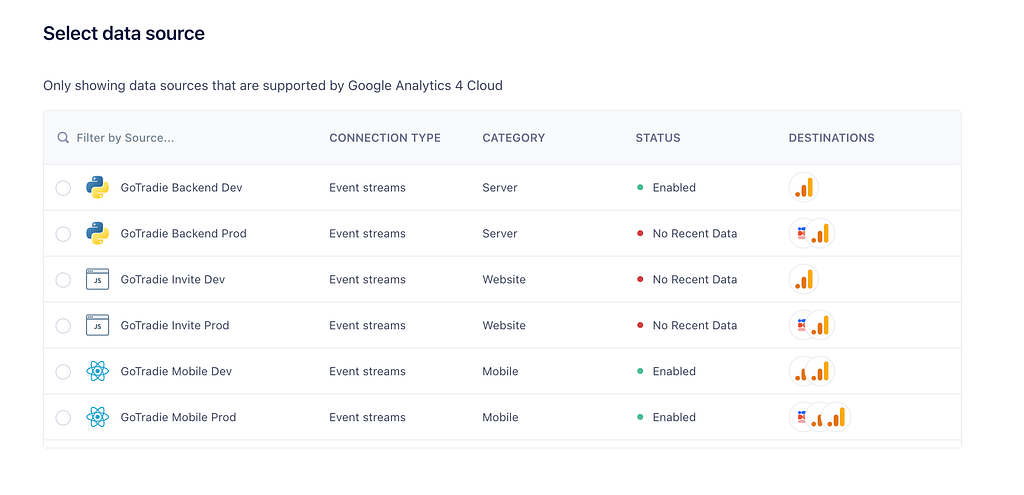
Then you can give its name. Here you can copy another destination-mapped event and its settings if you want by selecting “Copy settings from existing destination Instance”. If not just you can select “Fill in settings manually”.

So click the Create destination and now you got a segment destination.
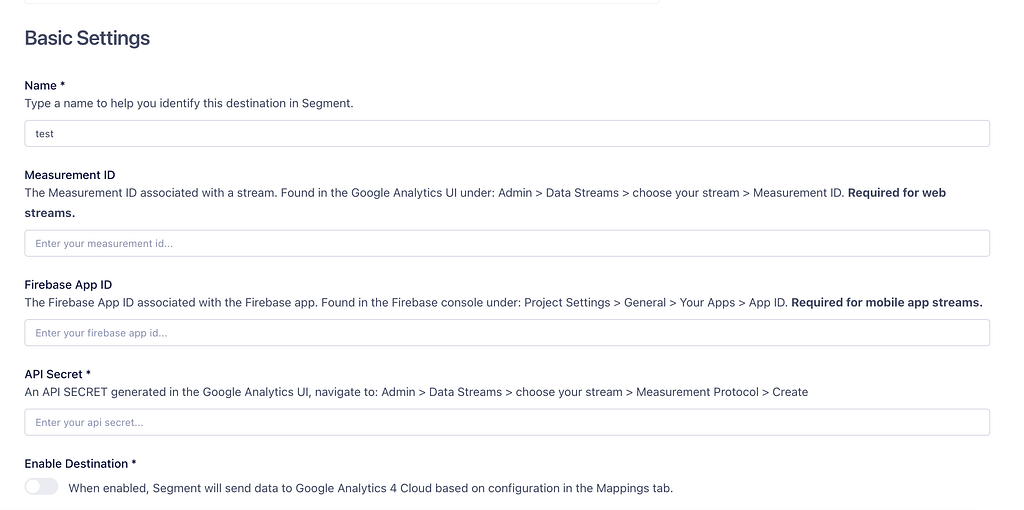
If you selected “Fill in settings manually” you will redirect to a page that contains input boxes. In there, you will have to give the required indicators according to that. If you selected “Copy settings from existing destination instance”, you will have a destination that copies mapped events and settings from the destination that you have given. It's an easy way to copy events that you mapped from another destination. Now you are ready to begin your segment journey. Will see you from an article that guides you to map segment events to google analytics.